Collaborative Editing and Comments
This guide explains how multiple users can collaboratively edit shared documents and leave comments on files and folders to share opinions. For detailed actions by editing method, please refer to "File and Folder Management Guide > Editing Guide."
1. Collaborative Editing
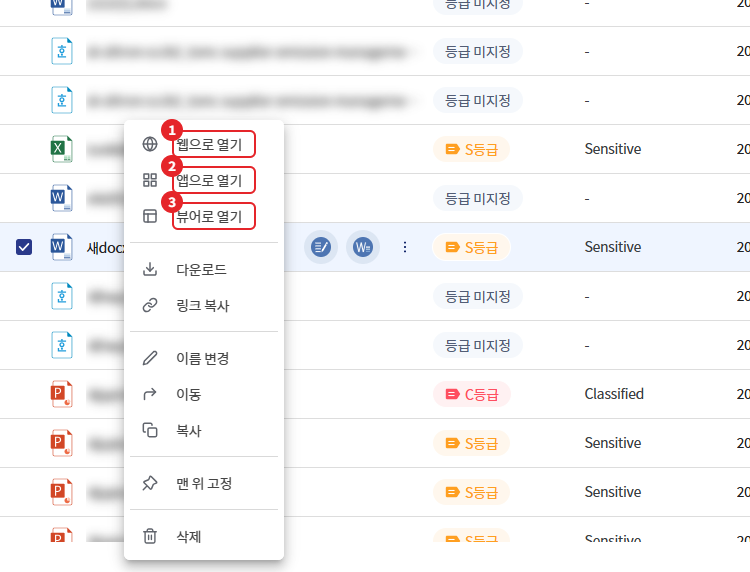
Right-clicking the file will display the menu below according to the edit permissions and administrator settings.
| Menu | Action | Simultaneous Editing |
|---|---|---|
| [Open in Web] | Editing in web office from the browser. Auto save | Simultaneous editing by multiple users |
| [Open in App] | Edit with MS Office apps installed on your PC | One user can edit. Other users are read-only. |
| [Open in Viewer] | Check content without editing | - |
1-1. Conditions for Menu Display
| Menu | condition |
|---|---|
| [Open in Web] | Allow editing permissions + Open in web for roles (edit) + Specify web office for that web office supported extensions |
| [Open in App] | Allow editing permissions + Open with the app of the role (edit) + Specify MS app Office + Office documents (docx, xlsx, pptx, etc.) + Environments other than Linux |
| [Open in Viewer] | Access Permission Granting + Viewer Supported Extensions |
The types of web office vary according to the storage type.
| Storage | Web Office |
|---|---|
| SharePoint | MS Web Office |
| Google Drive | Google Docs |
| NAS, Security NAS, Amazon S3 | MS Office Online Server or Hancom Web Office (if linked by the administrator) |
1-2. When another user is editing the app
If another user opens a file being edited with [Open in App], a message will be displayed stating "The file is available for read-only use only" along with the name of the user currently editing. At this time, it can only be opened in read-only mode in the web viewer or app. Once the editor closes the file, it can be edited again.
Note - General storage only provides [Open with app] single-user editing on NAS registered via SFTP, and does not provide web collaborative editing.
2. Comments
Leave comments on files and folders to share opinions with team members. Comments are available on files and folders in secure storage and are displayed when only one item is selected.
2-1. Comment Registration
- Select a file or folder.
- Click the details icon at the top right of the list to open the right panel.
- [Comment] Select the tab.
- You can enter content in the input field. You can enter up to 200 characters.
- Click on [Register].
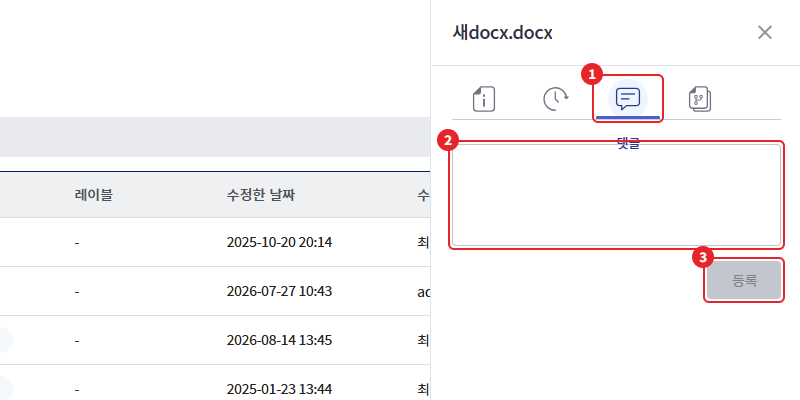
Registered comments will be displayed in the list along with the author's name and the time of writing. If only whitespace is entered, the [Register] button will be disabled.
2-2. Edit/Delete Comments
Only the comments you have written will show [Edit] and [Delete].
| work | Method |
|---|---|
| Correction | Click [Edit] to modify the content, then click outside the input field or press the Esc key to save. |
| Delete | Click [Delete] |
(Image to be attached later)
Note - Files in SharePoint·Google Drive storage can only be edited or deleted after the account linkage is completed.
If the operation fails, notifications "Comment creation failed", "Comment editing failed", "Comment deletion failed" will be displayed. Please try again later.